Accessibility features for iPhone and iPad.
Time Intersect supports Dark Interface, Reduced Motion, Sufficient Contrast, and Differentiate Without Color Alone when checking world times, comparing locations, and planning meetings.
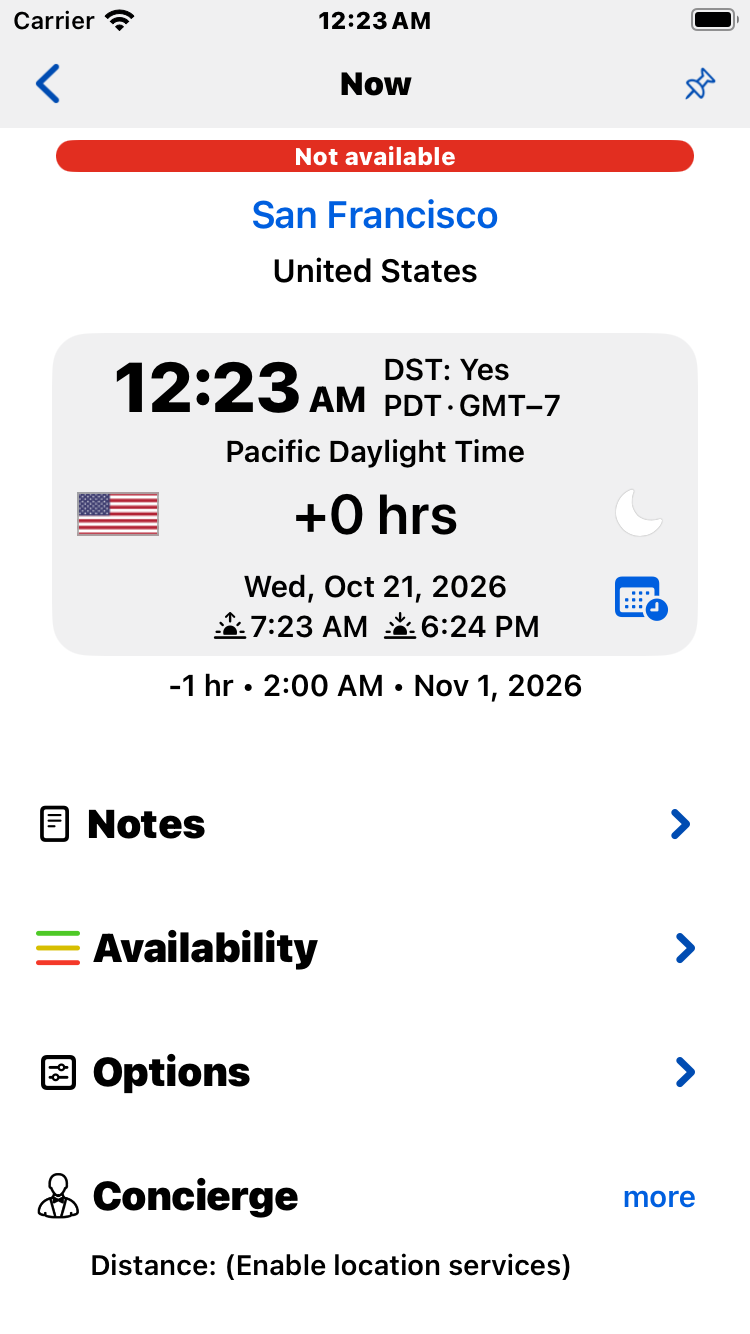
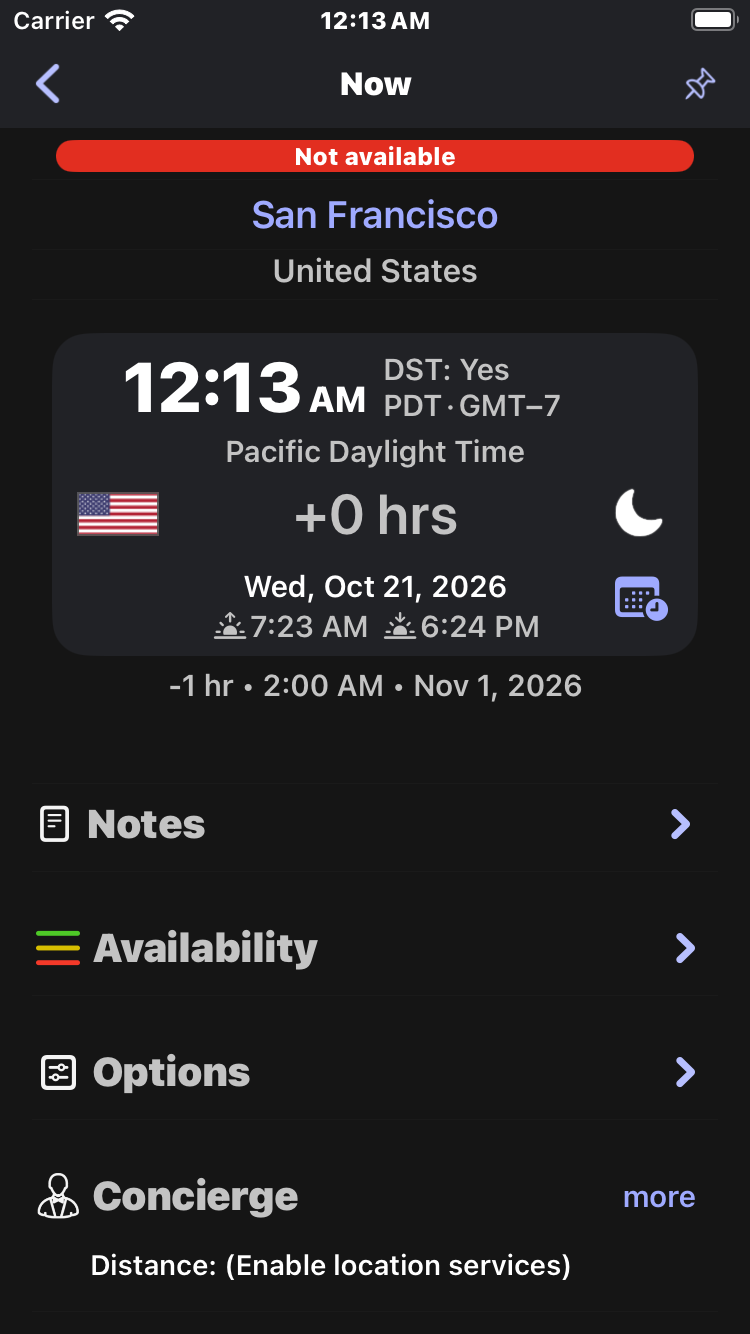
Dark Interface
Choose a dark appearance in Time Intersect for dark screens, menus, and controls.
For a consistently dark map, also select Dark in your device’s Settings → Display & Brightness. Maps follow the device’s current appearance when the app uses Automatic or a dark theme. Choosing Light in the app keeps maps light.
Reduced Motion
Turn on Settings → Accessibility → Motion → Reduce Motion on your iPhone or iPad. Time Intersect reduces custom movement and uses fades for transitions such as opening panels and changing the calendar, while keeping useful feedback visible.
Sufficient Contrast
Use the app’s Light or Dark Blue appearance for the recommended contrast setup. For clearer text and controls, open Settings → Accessibility → Display & Text Size and enable Bold Text, Increase Contrast, and Reduce Transparency.
Night Vision is a separate low-light appearance. Use Light or Dark Blue when you need the recommended contrast setup.
Differentiate Without Color Alone
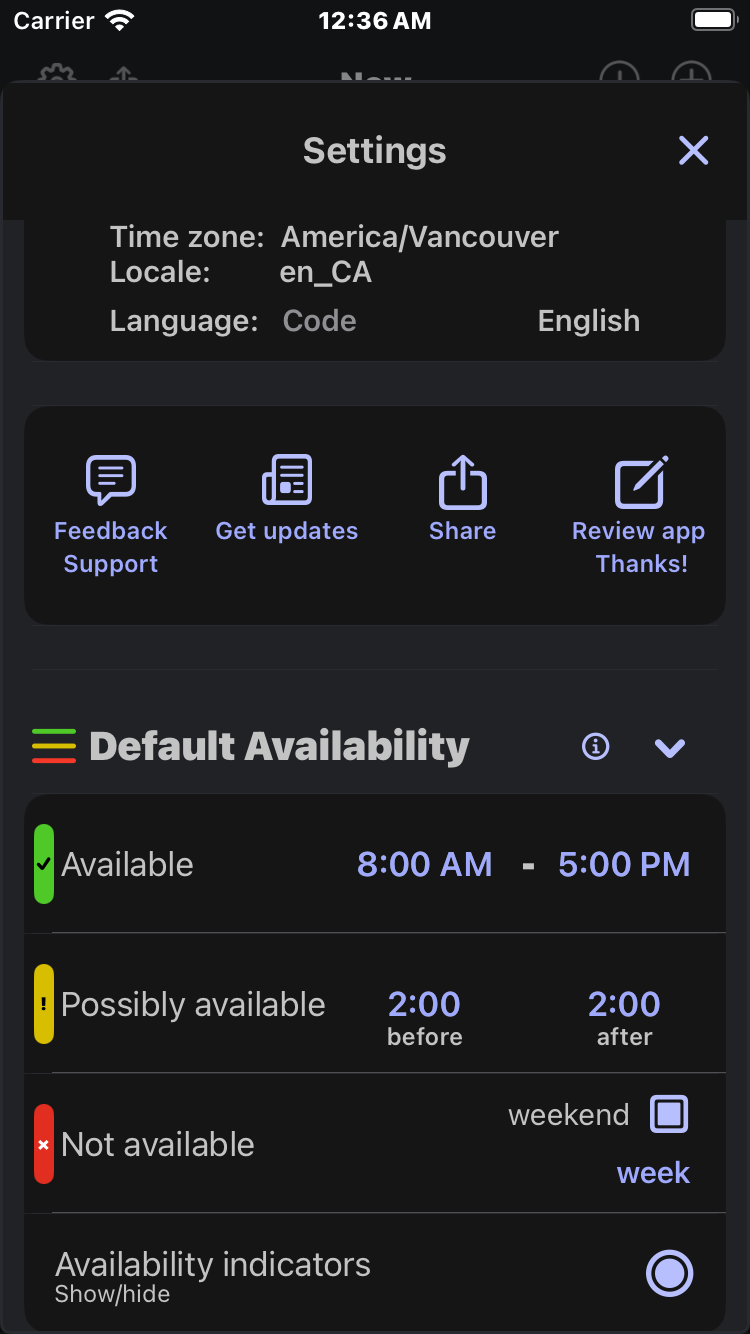
Availability can be shown with symbols and descriptive text, so you do not have to distinguish colors:
- ✓ Available
- ! Possibly available
- × Not available
- No symbol means No status.
Enable Settings → Accessibility → Display & Text Size → Differentiate Without Color. On/Off Labels also enables these availability cues. Horizontal indicators show descriptive text; vertical indicators show symbols. Where availability appears in supported clock and list widgets, symbols distinguish the states.
Other accessibility needs
We do not yet offer full support for VoiceOver, Voice Control, or Larger Text.
Accessibility support
Need help with accessibility? Contact support, or open the app’s Settings and choose Feedback / Support. Tell us which task was difficult, your app version, your device, and the accessibility settings you use.
Last update: 2026-10-21